Clearing Browser Cache
Update: This old article is specific to Internet Explorer. For help clearing cache on modern web browsers, visit this link.
As most everyone is aware, there were a few problems uncovered with the NEDSS Base System 2.0 release. These issues have been addressed by the developers, and we have received and installed a new version: 2.0.1. If you have not already done so, you may need to clear your Internet Explorer cache before using ALNBS.
For those unfamiliar with the term, cache is a place to temporarily keep a copy of information for faster retrieval when that information is requested in the future. Browser cache is used to make the Internet faster by storing previously accessed resources (images, stylesheets, web pages) on the computer being used. If a web page has been visited before, viewing the page a second time can be much faster because the data may be stored locally on the computer.
While browser cache is normally beneficial, it can sometimes cause problems when a web application like the NBS is upgraded. If the cache is not cleared on a computer before using it to access NBS 2.0, it is possible that old copies of pages could be displayed instead of retrieving the upgraded pages from our web server.
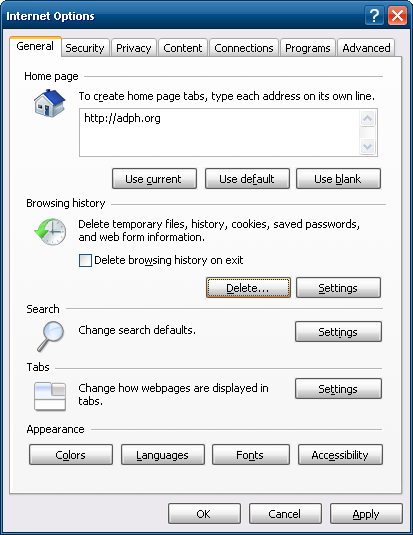
For users of Internet Explorer 7 or higher, here is how to delete the cache:
- On the menu bar, click Tools, and select Internet Options.
- On the General tab under Browsing history, click the Delete button.
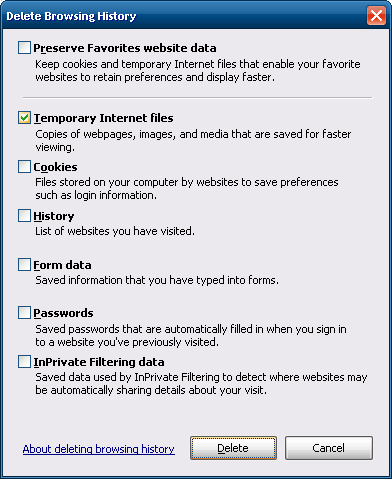
- Make sure that “Temporary Internet files” is checked, and click Delete.
For those who are still using the older IE version 6:
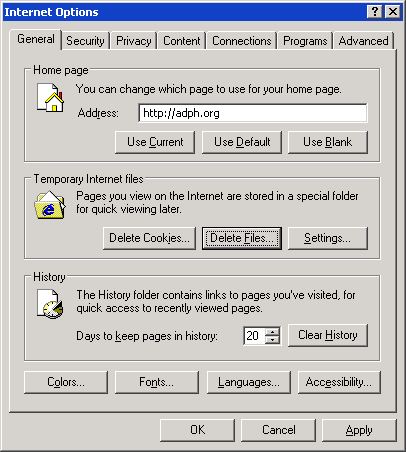
- Select Tools, then Internet Options.
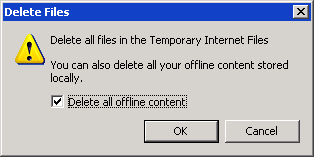
- On the General tab under the section labeled Temporary Internet files, click the Delete Files button.
- Check the box labeled “Delete all offline content”, and click OK.
To avoid having to clear your browser’s cache after every NBS upgrade, you can change your cache settings to always check for new content.
- On the General tab of the Internet Options dialog box, click the button labeled Settings.
- Select “Every Time I Visit the Web Page” or “Every Visit to the Page” (depending upon the browser version).
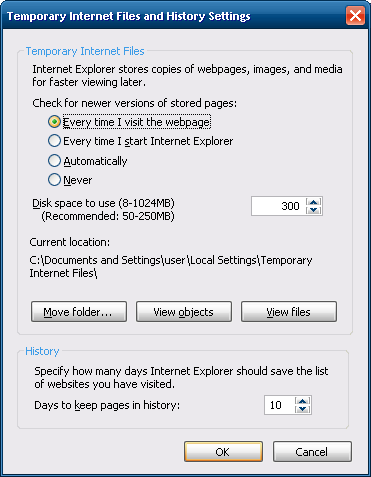
- Click OK a couple of times to save and exit.
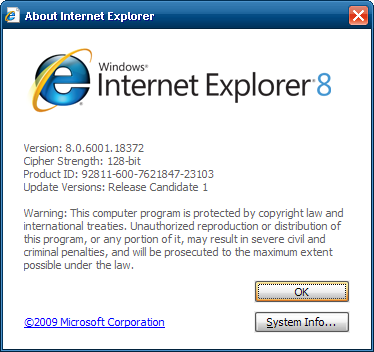
If you are unsure of which browser version you have installed, you can check by visting the About screen. Click the Help menu, and select About Internet Explorer. The dialog box will display the IE version.