Clearing Cache for Modern Browsers
Following an upgrade to a new version of the NEDSS Base System, users should always clear their web browser cache. It is also recommended to clear cache at least once a week due to investigation pages getting updated regularly.
On most desktop browsers, you can quickly access the interface to clear cache by pressing Ctrl-Shift-Delete when running Windows (Command-Shift-Delete on Mac). Make sure to use the shortcut combination while the web browser is the active window.
If this does not work, you can follow more detailed instructions for the most widely used browsers below.
Google Chrome
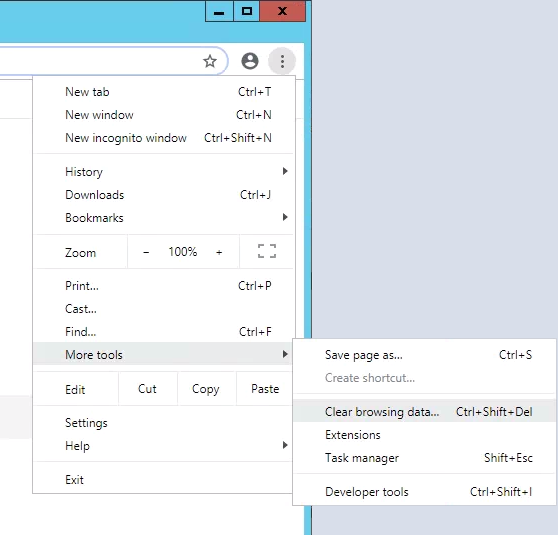
In Chrome, click the menu in the top-right corner (the three vertical dots). Click the More tools option then Clear browsing data…
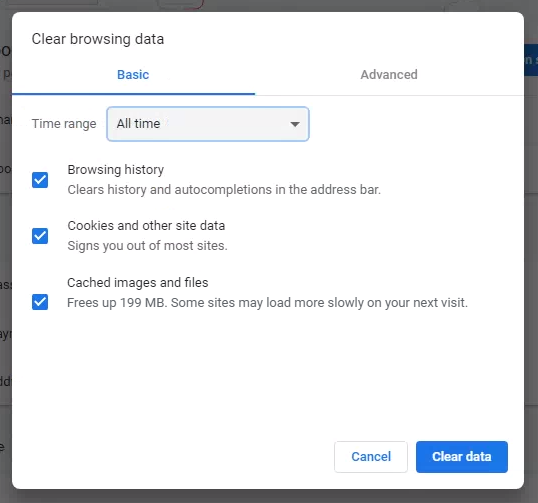
On the new tab for clearing data, choose the time range. Selecting All time will delete everything. Make sure the checkboxes for “Cookies and other site data” and “Cached images and files” are checked. Clearing the browsing history is optional. Click the Clear data button to finish the process.
Mozilla Firefox
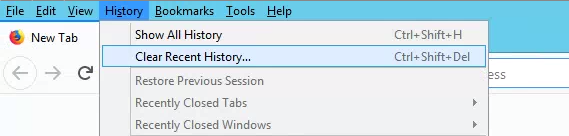
From the menu bar at the top of the window (if hidden, press the Alt key to make it visible), select the History menu then Clear Recent History…
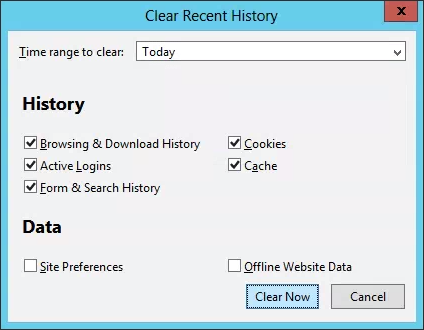
On the Clear Recent History dialog box, choose the time range (Everything will ensure all data is cleared). The checkboxes for Cookies and Cache must be active; the others are optional. To finish, click Clear Now, and the data will be cleared.
Microsoft Edge
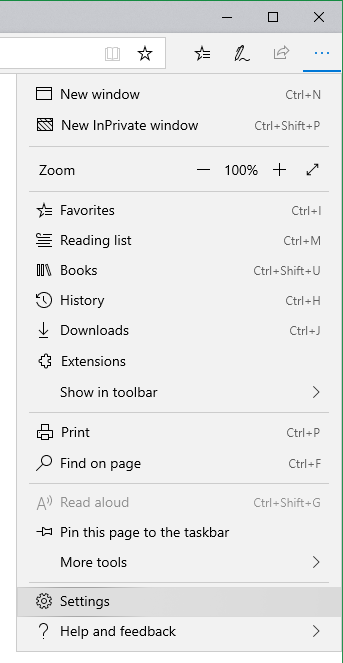
In Edge, click the menu in the top-right corner (the three horizontal dots), then click Settings.
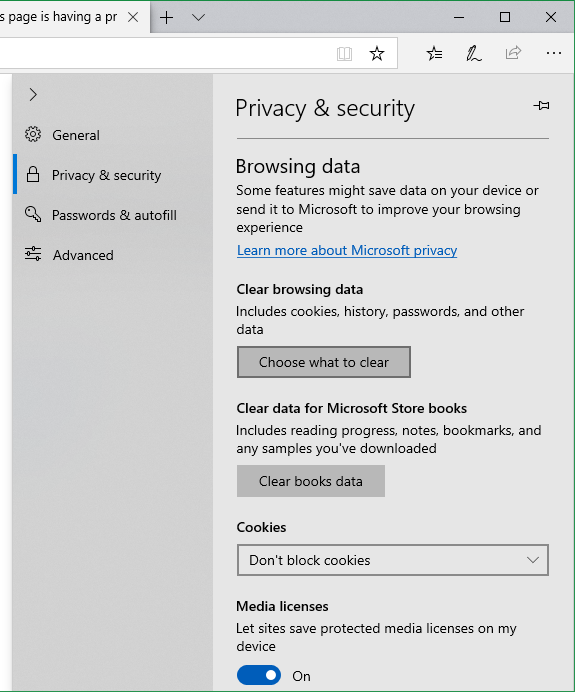
In the panel which slides out, select Privacy & security from the left. Under the Clear browsing data heading, click the button labeled Choose what to clear.
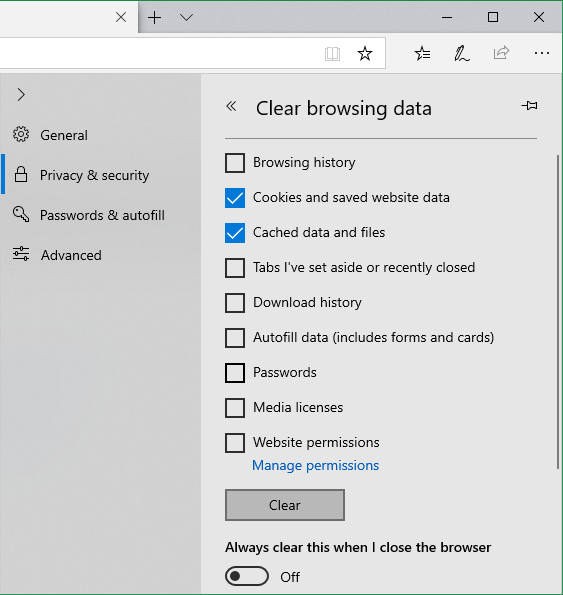
The options Cookies and saved website data and Cached data and files must be checked; the others are optional. Clicking the Clear button is the final step to removing the un-needed files.
Internet Explorer
While IE is no longer recommended, for those who still need to use it, there is a decade-old article showing how to clear cache on that outdated browser.
If you have any trouble clearing browser data following an upgrade, contact the ALNBS team at alnedsssupport@adph.state.al.us.
